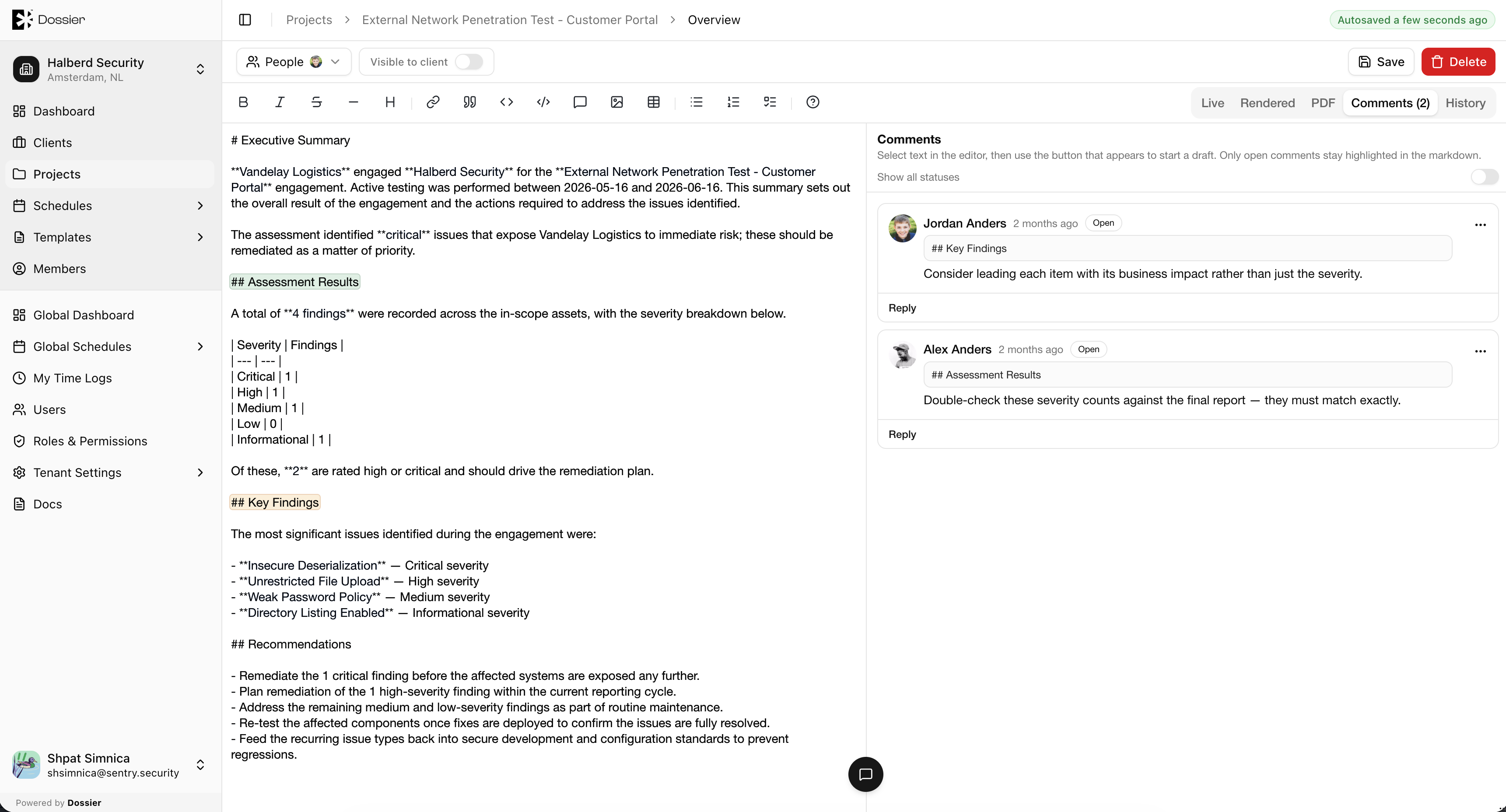
Manage Project Overview
Creating an Overview
Step 1: Navigate to the Overview tab
Open a project and click Overview in the section navigation.
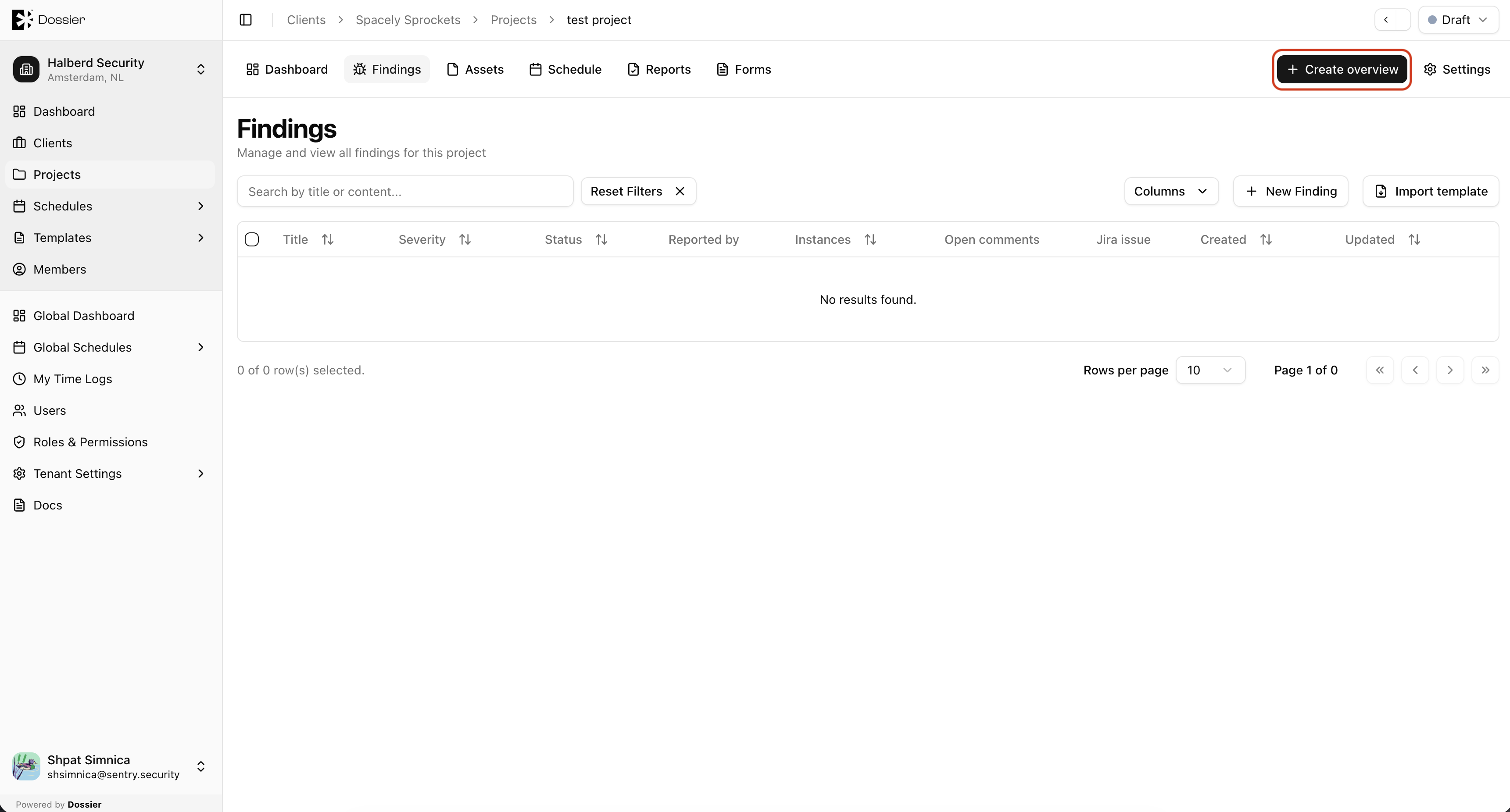
Step 2: Click Create overview
If no overview exists, click Create overview to initialize the document.
Step 3: Write content
Use the markdown editor to write the project narrative. Content auto-saves after a few seconds.
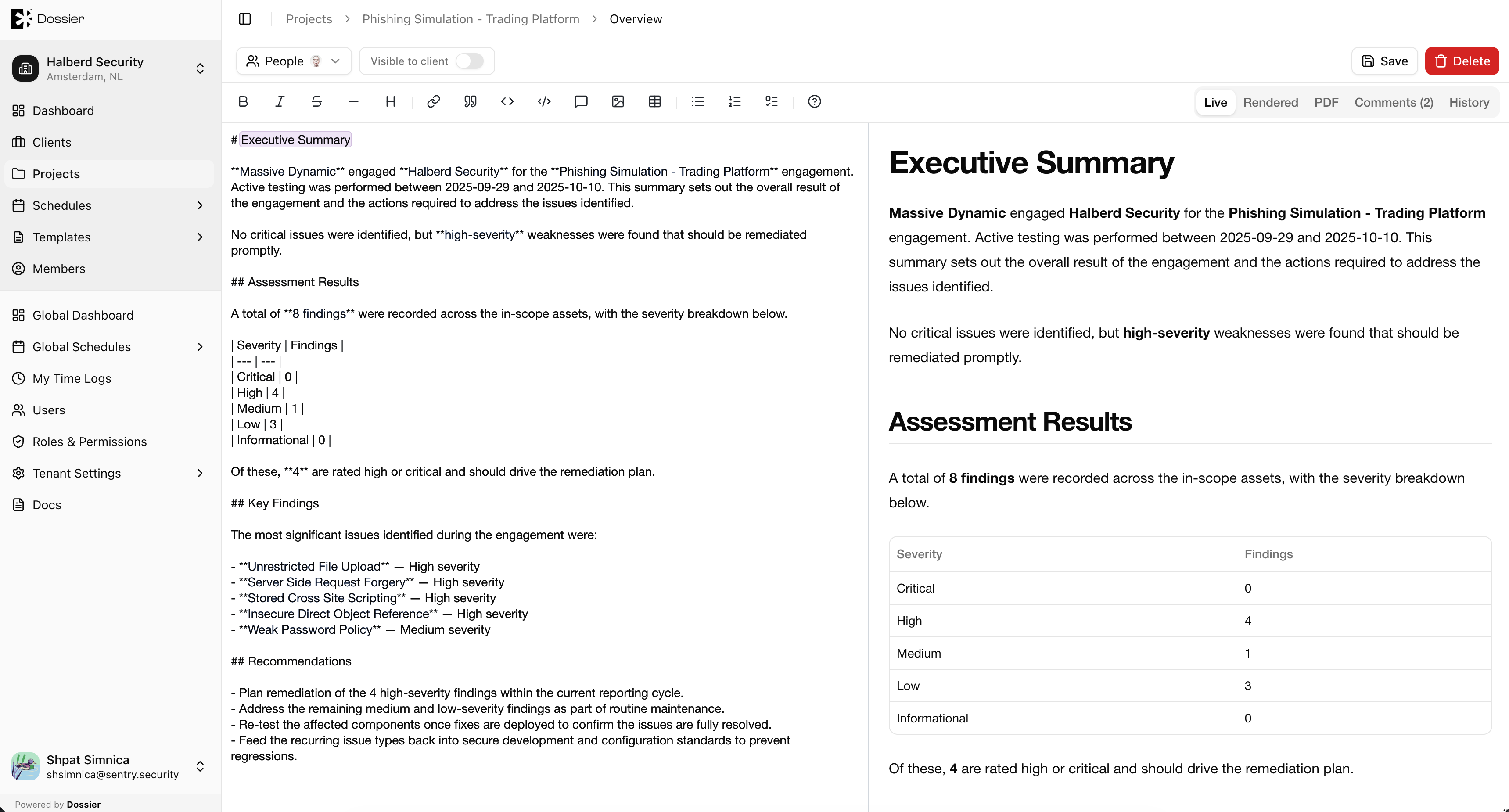
Editing the Overview
Open the Overview tab and edit content directly in the markdown editor. Changes are saved automatically.
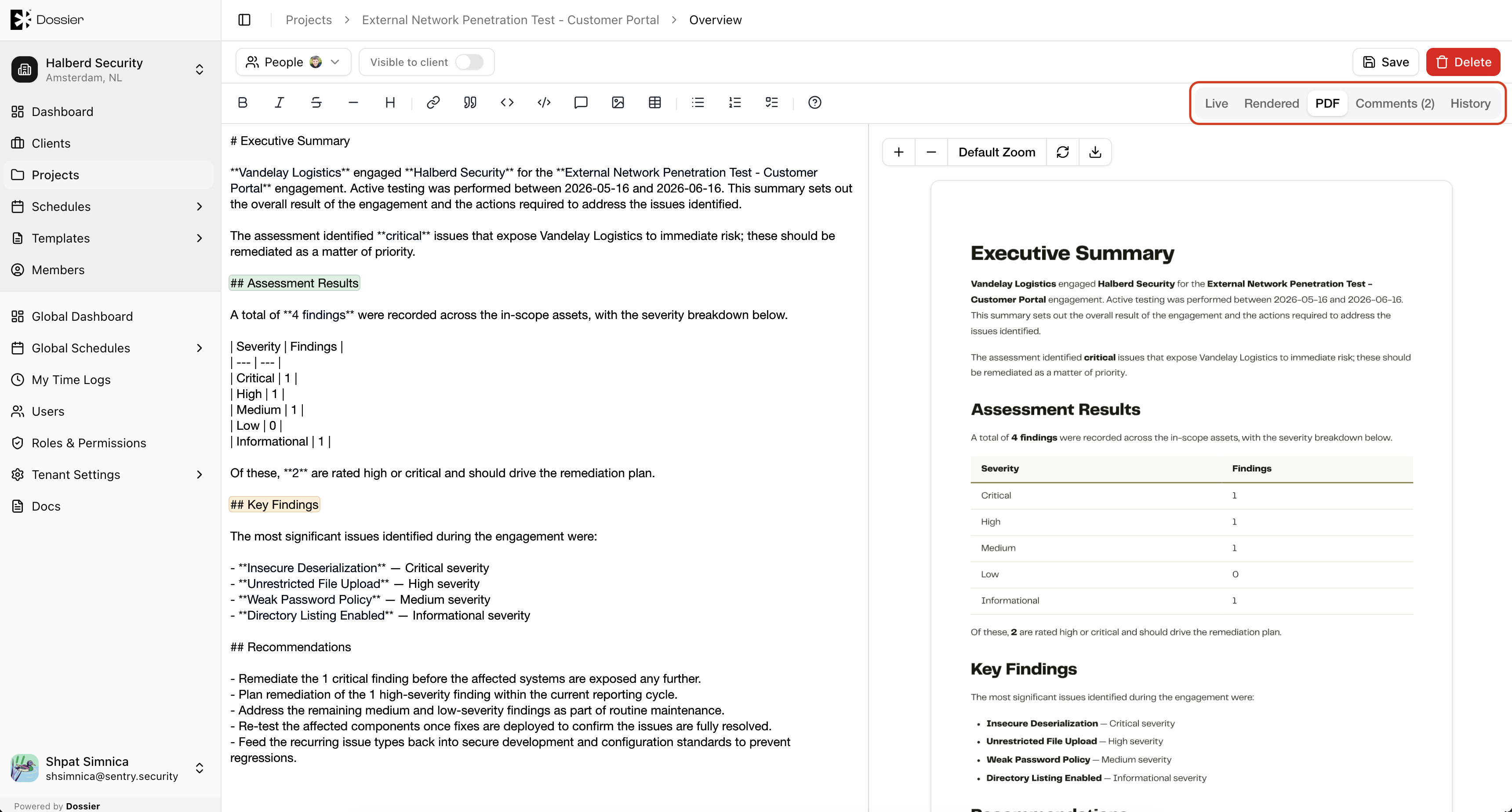
View modes
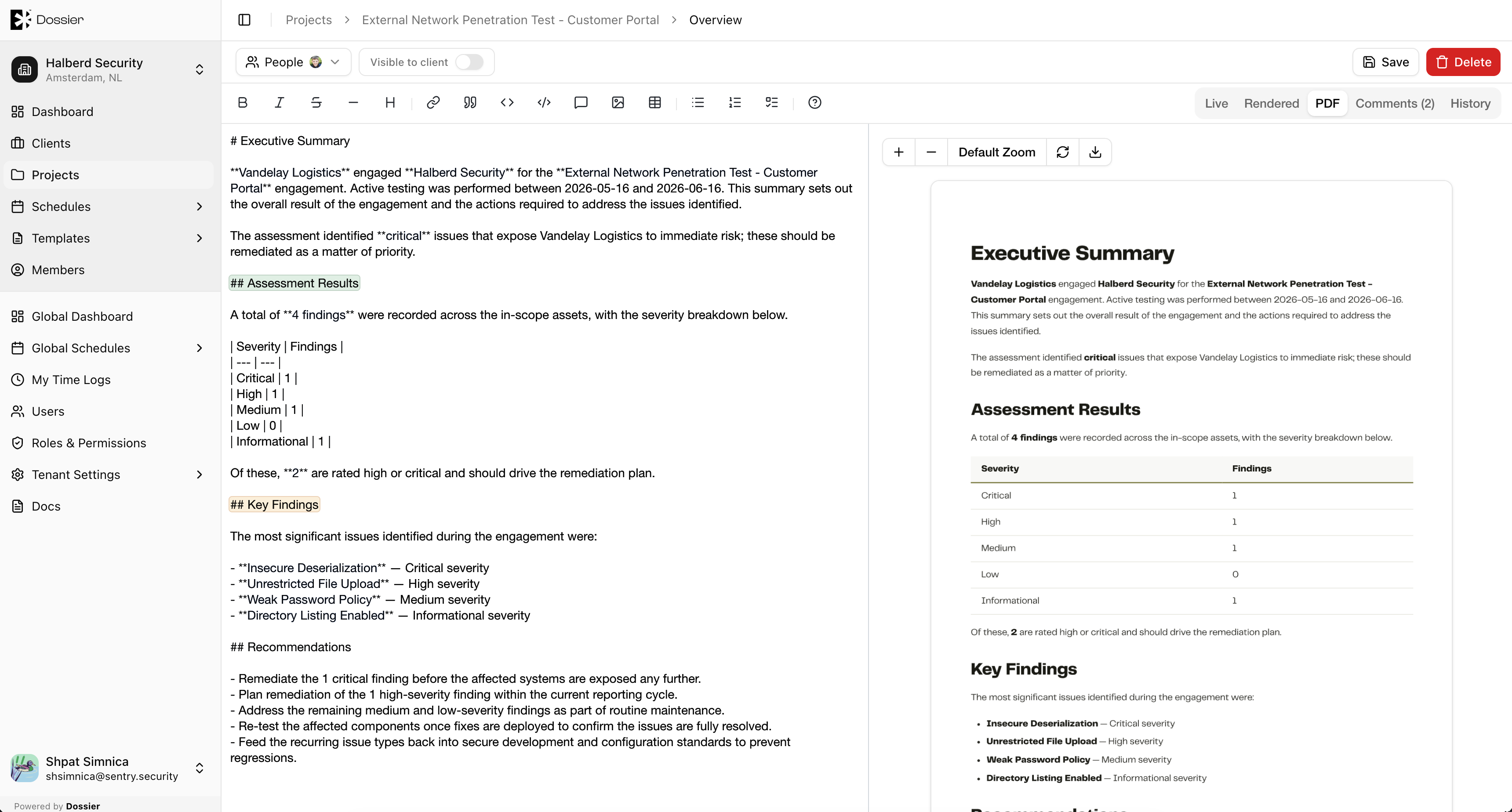
Switch between Live, Rendered, and PDF using the toolbar buttons.
Managing Collaborators
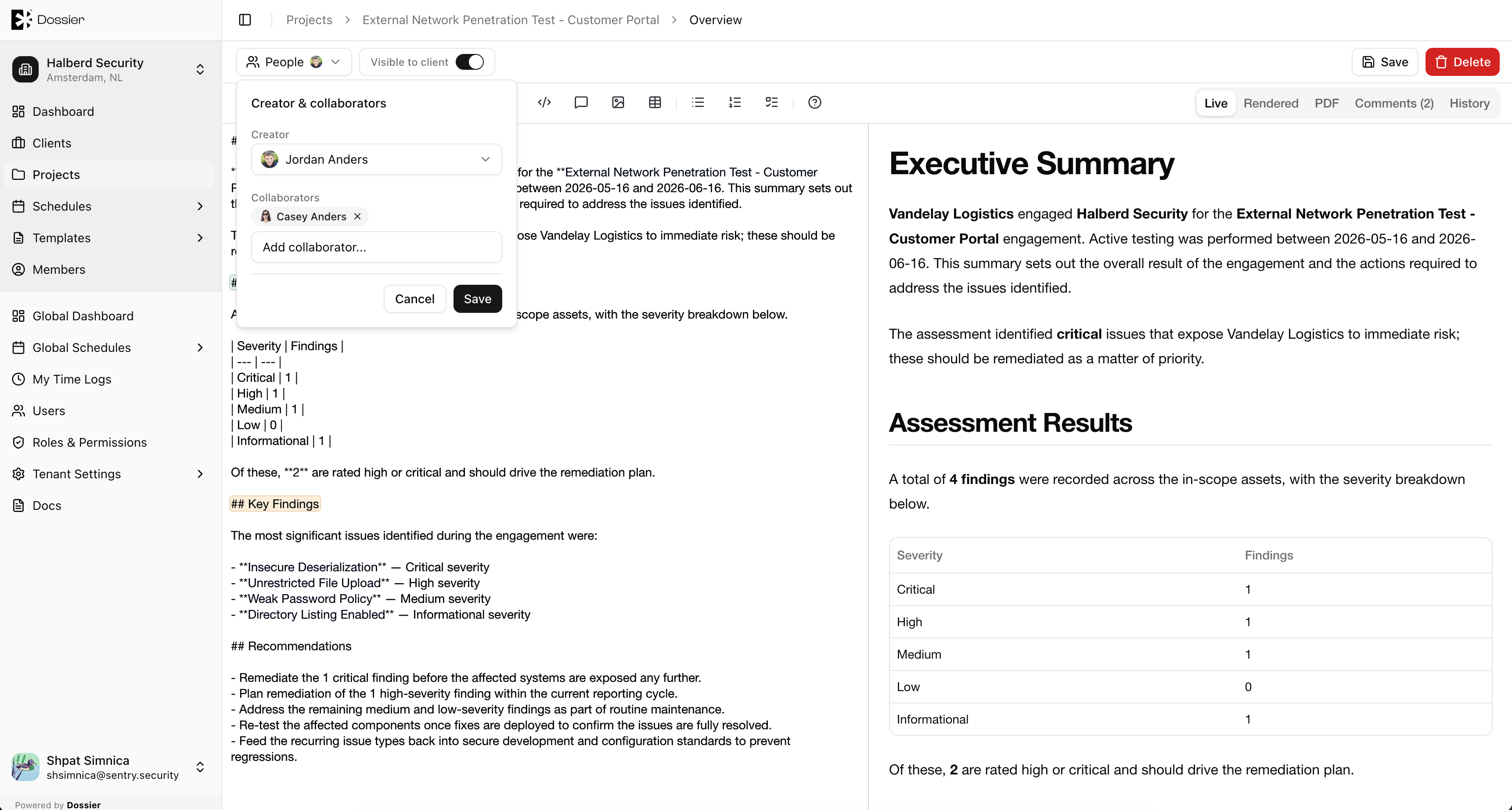
Assign team members as collaborators so they can edit the overview alongside the creator.
Client Visibility
Toggle Visible to client to control whether client portal users can read the overview.
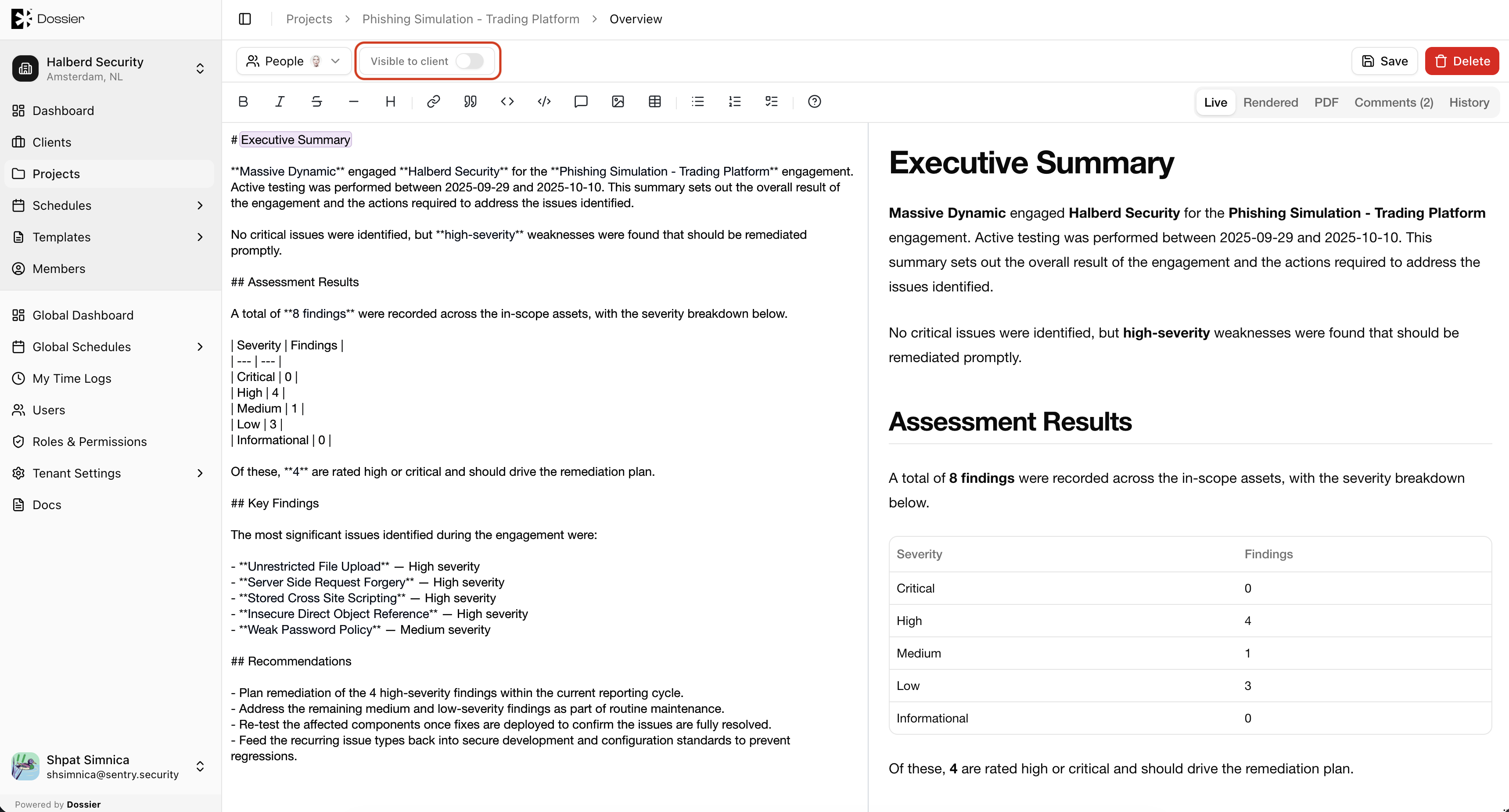
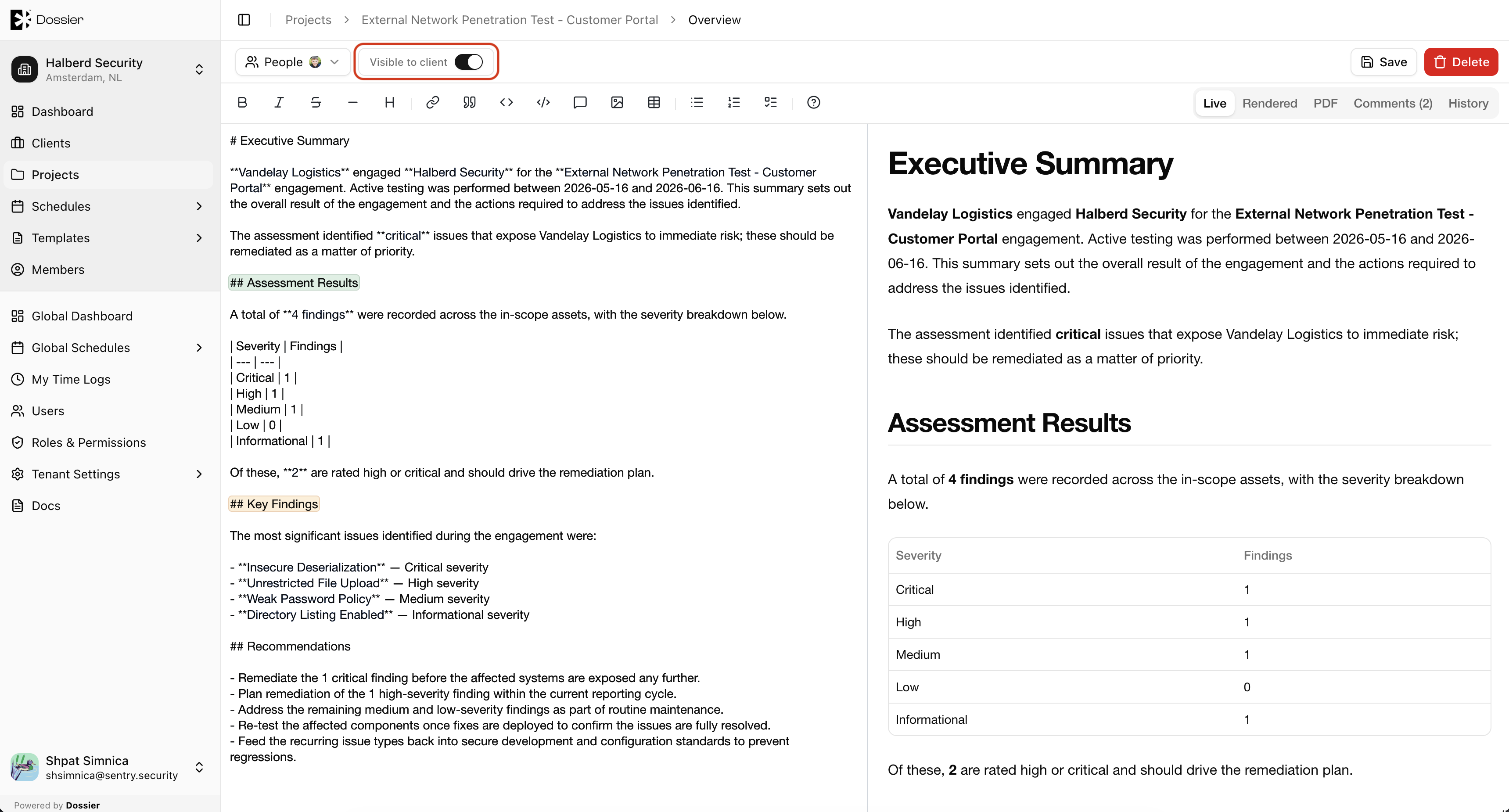
Enable Visible to client when the overview is ready for client review. Until then, clients do not see the overview content.
Generating a PDF
Click Generate PDF on the overview page to create a PDF using the project's configured report template.
Content History
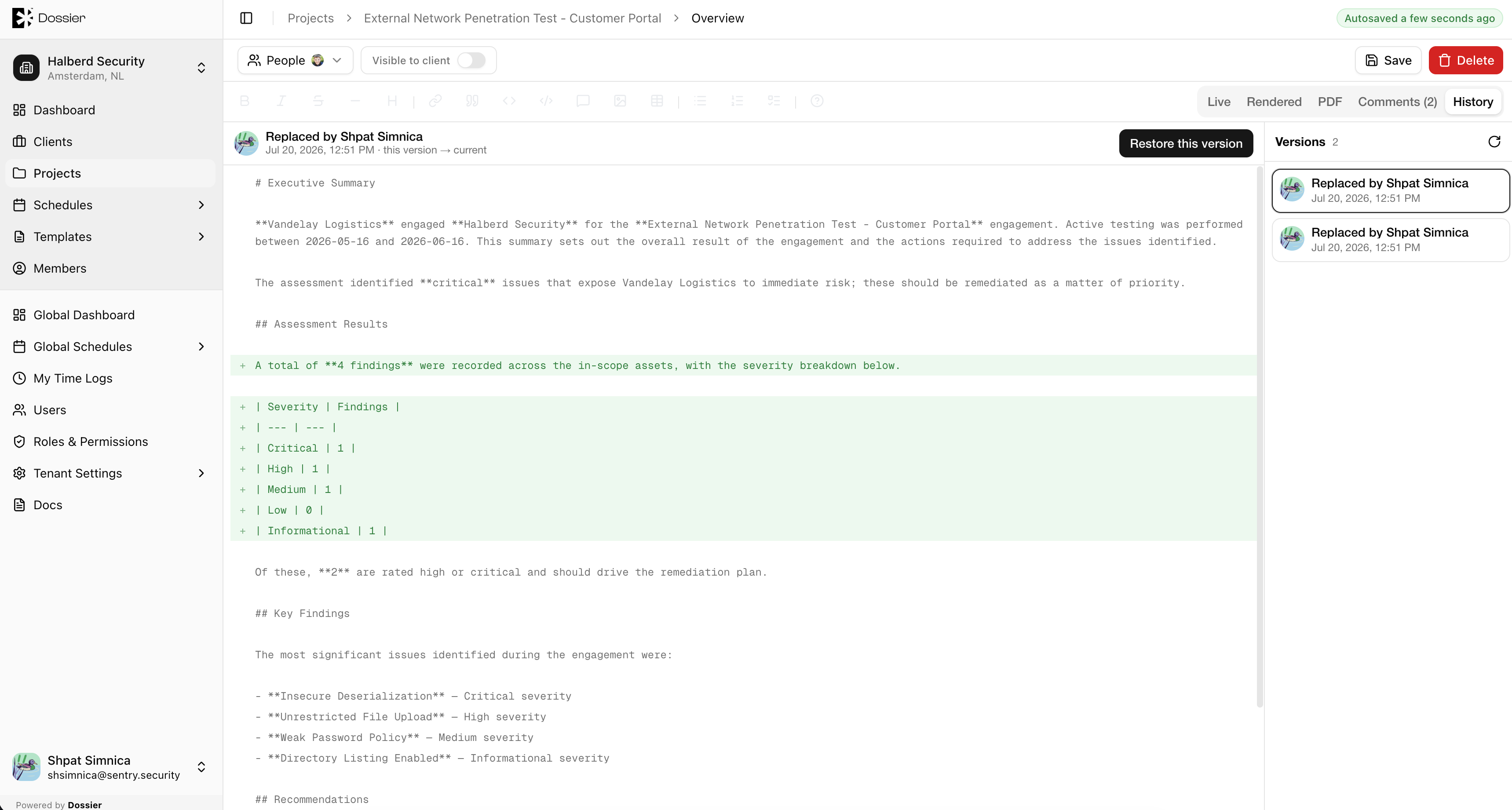
Open the history panel to view previous versions, compare changes with a diff view, or restore an earlier version.
Comments
Use the comments panel to add inline feedback anchored to specific text in the overview. Comments support threaded replies and status tracking (Open, Resolved, Won't Fix, Obsolete).